OpsGenie
OpsGenie end of support
Atlassian ends support for OpsGenie on April 5, 2027. OpsGenie accounts move to Jira Service Management or Compass before then, as Atlassian's migration guide describes.
After the move, set the host to api.atlassian.com to send to Jira Service Management's alert API.
opsgenie://api.atlassian.com/API_KEY
Replace API_KEY with the key of an API integration in Jira Service Management.
Atlassian's guide to setting up an API integration shows where to find it.
Shoutrrr then sends each alert to https://api.atlassian.com/jsm/ops/integration/v2/alerts.
The alert fields, parameters, and priorities work as they do with OpsGenie.
An account that has not moved keeps its OpsGenie host.
URL Format
URL Fields
- Host - The OpsGenie API host. Use 'api.eu.opsgenie.com' for EU instances, or 'api.atlassian.com' for Jira Service Management
Default:
api.opsgenie.com
URL part: Host - Port - The OpsGenie API port.
Default:
443
URL part: Port - APIKey - The OpsGenie API key (Required)
URL part: Path
Query/Param Props
Props can be either supplied using the params argument or through the URL using
?key=value&key=value etc.
-
actions - Custom actions that will be available for the alert Default: empty
-
alias - Client-defined identifier of the alert Default: empty
-
description - Description field of the alert Default: empty
-
details - Map of key-value pairs to use as custom properties of the alert Default: empty
-
entity - Entity field of the alert that is generally used to specify which domain the Source field of the alert Default: empty
-
note - Additional note that will be added while creating the alert Default: empty
-
priority - Priority level of the alert. Possible values are P1, P2, P3, P4 and P5 Default: empty
-
responders - Teams, users, escalations and schedules that the alert will be routed to send notifications Default: empty
-
source - Source field of the alert Default: empty
-
tags - Tags of the alert Default: empty
-
title - notification title, optionally set by the sender Default: empty
-
user - Display name of the request owner Default: empty
-
visibleto - Teams and users that the alert will become visible to without sending any notification Default: empty
Creating a REST API endpoint in OpsGenie
-
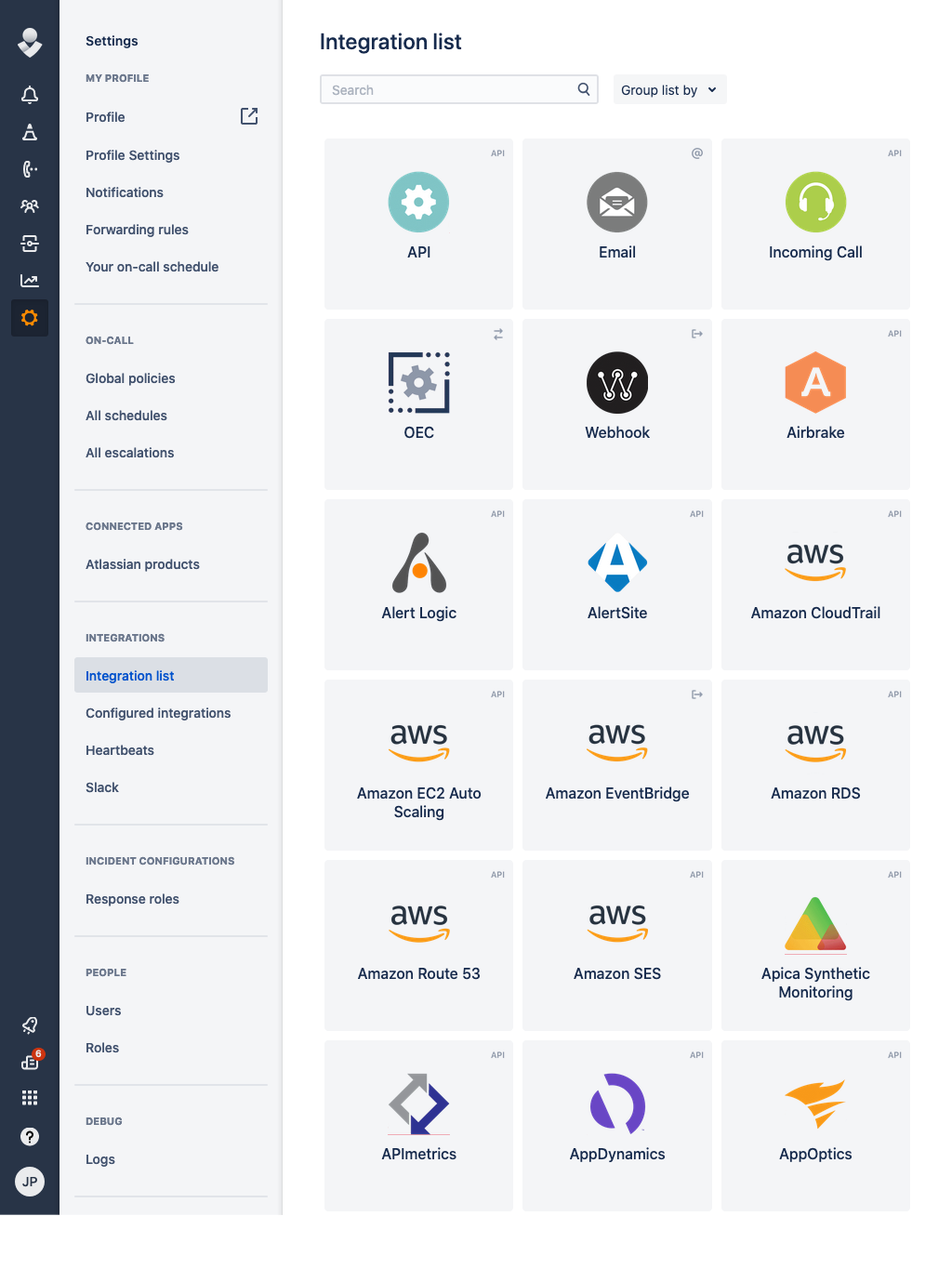
Open up the Integration List page by clicking on Settings => Integration List within the menu
-
Click API => Add
-
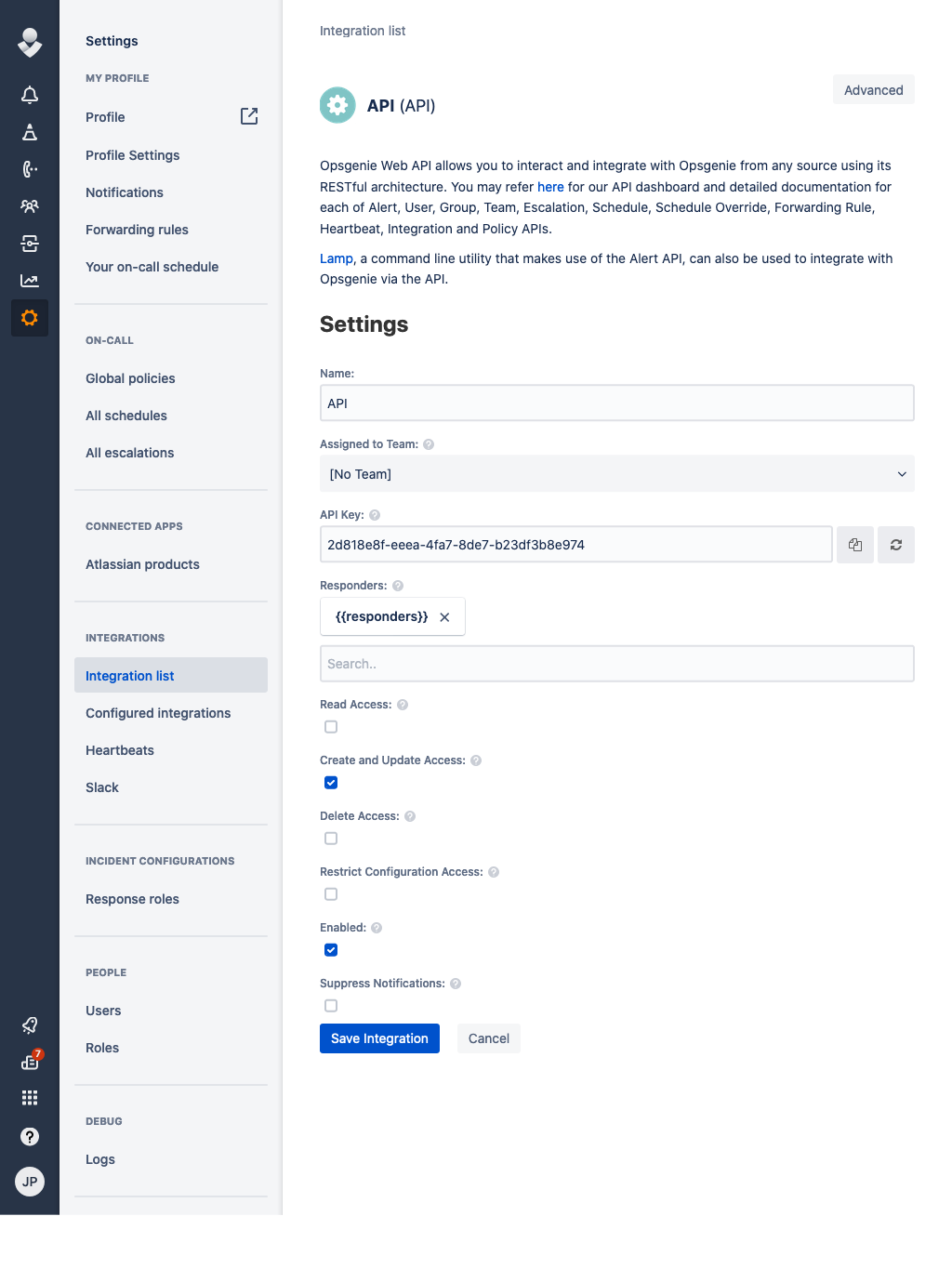
Make sure Create and Update Access and Enabled are checked and click Save Integration
-
Copy the API Key
-
Format the service URL
The OpsGenie host is api.opsgenie.com or api.eu.opsgenie.com, depending on the location of your instance.
See the OpsGenie documentation for details.
The host can be left out, as in opsgenie:///API_KEY, in which case api.opsgenie.com is used.
An account that has moved to Jira Service Management uses the host api.atlassian.com, as the note at the top of this page describes.
opsgenie://api.opsgenie.com/eb243592-faa2-4ba2-a551q-1afdf565c889
                            └───────────────────────────────────┘
                                           token
Passing parameters via code
You can pass additional parameters to the Send function.
The following example contains all parameters that are currently supported.
service.Send("An example alert message", &types.Params{
    "title":       "An example title",
    "alias":       "Life is too short for no alias",
    "description": "Every alert needs a description",
    "responders":  "team:4513b7ea-3b91-438f-b7e4-e3e54af9147c,team:NOC,user:[email protected],escalation:Nightwatch Escalation,schedule:First Responders Schedule",
    "visibleTo":   "team:rocket_team,user:[email protected]",
    "actions":     "Restart,AnExampleAction",
    "tags":        "OverwriteQuietHours,Critical",
    "details":     "key1:value1,key2:value2",
    "entity":      "An example entity",
    "source":      "The source",
    "priority":    "P1",
    "user":        "Dracula",
    "note":        "Here is a note",
})
Parameter formats
respondersandvisibleToare comma-separatedtype:identifierentries. An identifier in the OpsGenie ID format, such as4513b7ea-3b91-438f-b7e4-e3e54af9147c, is sent as the ID. Otherwise it is sent as the username foruserand as the name forteam,escalation, andschedule.visibleToaccepts onlyteamanduserentries, as OpsGenie requires. Any other type fails, whether it is set in the URL, in code, or in the send params.actionsandtagsare comma-separated lists.detailsis a comma-separated list ofkey:valuepairs. Each pair splits at its first colon, so values can contain colons, as inrunbook:https://wiki.example.com/disk, while keys cannot. Neither keys nor values can contain commas.priorityisP1toP5in any case, and is sent in upper case. Any other value fails, and an unset priority leaves OpsGenie's default ofP3.- The alert message is the title when one is set, and the notification message otherwise, cut to 130 characters. The notification message is sent as the description when a title is set or when it is cut. OpsGenie requires an alert message, so a send without a title or a message fails before the request.
See the OpsGenie Alert API documentation for the limits of each field.
Message level
A sender can set a message level with the level param, as Params.SetLevel does.
When neither the URL nor the send params set priority, the level picks it:
| Level | Priority |
|---|---|
| Debug | P5 (informational) |
| Info | P4 (low) |
| Warning | P3 (moderate) |
| Error | P2 (high) |
P1 (critical) is left for alerts that configure it.
A priority in the URL or the send params takes precedence over the level.
Optional parameters
You can optionally specify the parameters in the URL:
opsgenie://api.opsgenie.com/API_KEY?alias=Life+is+too+short+for+no+alias&description=Every+alert+needs+a+description&actions=An+action&tags=tag1,tag2&entity=An+example+entity&source=The+source&priority=P1&user=Dracula¬e=Here+is+a+note
Example using the command line:
shoutrrr send -u 'opsgenie://api.eu.opsgenie.com/API_KEY?tags=tag1,tag2&description=testing&responders=user:superuser,team:NOC&entity=Example+Entity&source=Example+Source&actions=Restart,Ignore' -m "Hello World6"